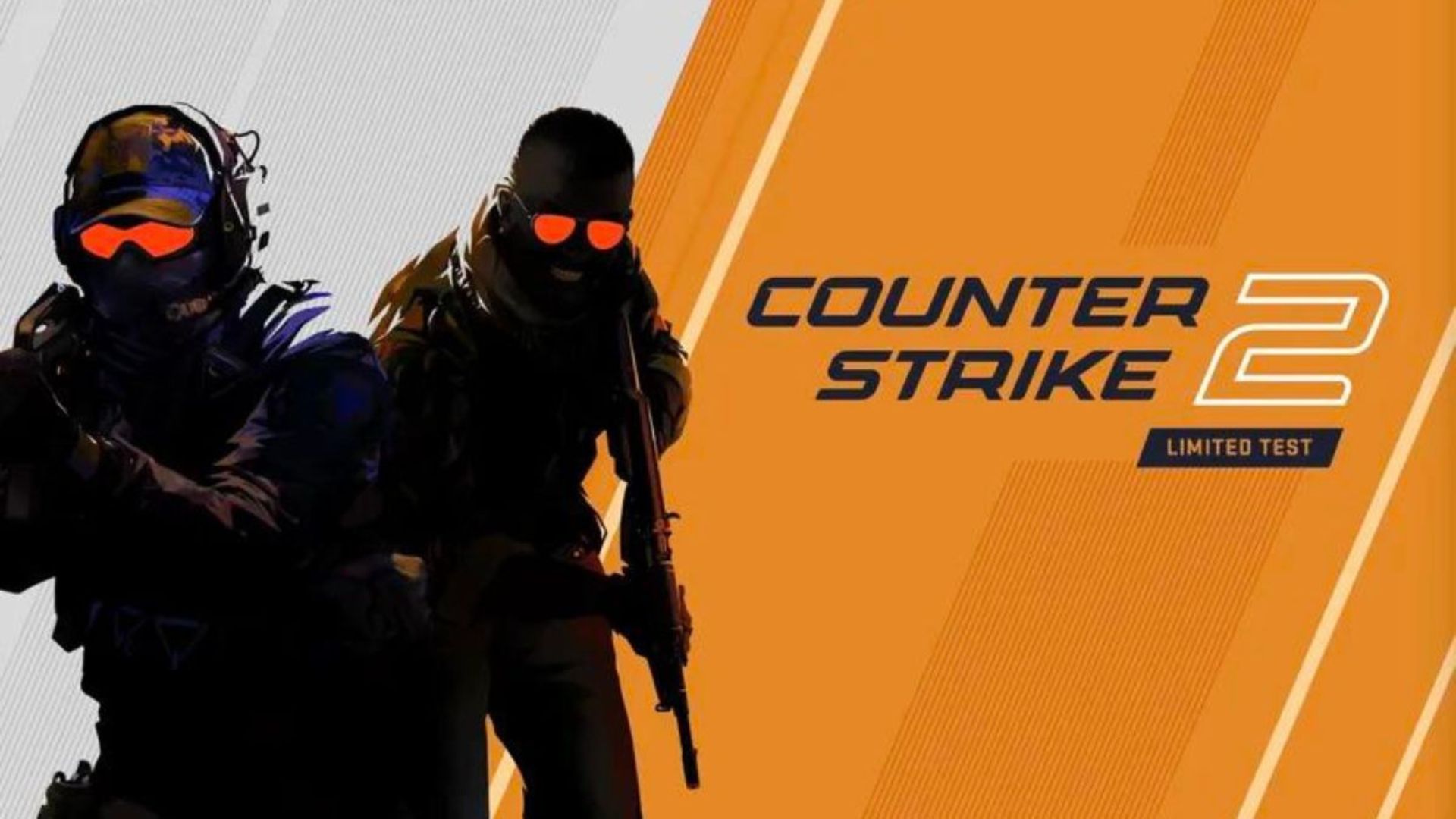
Best Graphics Settings for CS2
Complete optimization guide — 6 presets, 220–900 FPS
📋 Quick Summary
Presets
6
FPS Range
220–900
Best Quality
Ultra
Best FPS
Streaming
📑 Table of Contents
💎 CS2 Ultra Settings
📐 1920x1080
🎯 220–320 FPS
Graphics Quality
Global Shadow Quality
Very High
Model / Texture Detail
Very High
Shader Detail
Very High
Particle Detail
Very High
Ambient Occlusion
High
High Dynamic Range
Quality
Volumetric Smoke Quality
High
Water Detail
High
Texture Filtering Mode
16x Anisotropic
Anti Aliasing
8x MSAA
FidelityFX Super Resolution
Off
Motion Blur
Off
Display Settings
Display Mode
Fullscreen
Resolution
1920x1080
Refresh Rate
144Hz
VSync
Off
Max FPS
300
Advanced Settings
NVIDIA Reflex
Enabled
Boost Player Contrast
On
Low Latency Mode
On
Multicore Rendering
On
Dynamic Shadows
All
🖥️ Recommended Hardware for Ultra
GPU
RTX 4070 Ti or better
CPU
Intel i7-13700K / Ryzen 7 7700X
RAM
32 GB DDR5
🎨 CS2 High Settings
📐 1920x1080
🎯 300–420 FPS
Graphics Quality
Global Shadow Quality
High
Model / Texture Detail
High
Shader Detail
High
Particle Detail
High
Ambient Occlusion
Medium
High Dynamic Range
Performance
Volumetric Smoke Quality
Medium
Water Detail
Medium
Texture Filtering Mode
8x Anisotropic
Anti Aliasing
4x MSAA
FidelityFX Super Resolution
Off
Motion Blur
Off
Display Settings
Display Mode
Fullscreen
Resolution
1920x1080
Refresh Rate
165Hz
VSync
Off
Max FPS
400
Advanced Settings
NVIDIA Reflex
Enabled
Boost Player Contrast
On
Low Latency Mode
On
Multicore Rendering
On
Dynamic Shadows
All
🖥️ Recommended Hardware for High
GPU
RTX 3070 / RX 6800 XT
CPU
Intel i5-12600K / Ryzen 5 5600X
RAM
16 GB DDR4
⚖️ CS2 Medium Settings
📐 1920x1080
🎯 380–550 FPS
Graphics Quality
Global Shadow Quality
Medium
Model / Texture Detail
Medium
Shader Detail
Medium
Particle Detail
Medium
Ambient Occlusion
Off
High Dynamic Range
Performance
Volumetric Smoke Quality
Low
Water Detail
Low
Texture Filtering Mode
4x Anisotropic
Anti Aliasing
2x MSAA
FidelityFX Super Resolution
Performance
Motion Blur
Off
Display Settings
Display Mode
Fullscreen
Resolution
1920x1080
Refresh Rate
200Hz
VSync
Off
Max FPS
500
Advanced Settings
NVIDIA Reflex
Enabled + Boost
Boost Player Contrast
On
Low Latency Mode
On
Multicore Rendering
On
Dynamic Shadows
Player Only
🖥️ Recommended Hardware for Medium
GPU
RTX 3060 / RX 6600 XT
CPU
Intel i5-11400 / Ryzen 5 3600
RAM
16 GB DDR4
🏎️ CS2 Low Settings
📐 1920x1080
🎯 500–750 FPS
Graphics Quality
Global Shadow Quality
Low
Model / Texture Detail
Low
Shader Detail
Low
Particle Detail
Low
Ambient Occlusion
Off
High Dynamic Range
Performance
Volumetric Smoke Quality
Low
Water Detail
Low
Texture Filtering Mode
Bilinear
Anti Aliasing
Off
FidelityFX Super Resolution
Performance
Motion Blur
Off
Display Settings
Display Mode
Fullscreen
Resolution
1920x1080
Refresh Rate
240Hz
VSync
Off
Max FPS
600
Advanced Settings
NVIDIA Reflex
Enabled + Boost
Boost Player Contrast
On
Low Latency Mode
On
Multicore Rendering
On
Dynamic Shadows
Off
🖥️ Recommended Hardware for Low
GPU
GTX 1650 / RX 580
CPU
Intel i3-10100 / Ryzen 3 3300X
RAM
8 GB DDR4
🎮 CS2 Competitive Settings
📐 1920x1080
🎯 600–900 FPS
Graphics Quality
Global Shadow Quality
Low
Model / Texture Detail
Low
Shader Detail
Low
Particle Detail
Low
Ambient Occlusion
Off
High Dynamic Range
Performance
Volumetric Smoke Quality
Low
Water Detail
Low
Texture Filtering Mode
Bilinear
Anti Aliasing
Off
FidelityFX Super Resolution
Performance
Motion Blur
Off
Display Settings
Display Mode
Fullscreen
Resolution
1920x1080
Refresh Rate
Unlimited
VSync
Off
Max FPS
Unlimited
Advanced Settings
NVIDIA Reflex
Enabled + Boost
Boost Player Contrast
On
Low Latency Mode
On
Multicore Rendering
On
Dynamic Shadows
Off
🖥️ Recommended Hardware for Competitive
GPU
RTX 3060 Ti or better
CPU
Intel i5-12400F / Ryzen 5 5600
RAM
16 GB DDR4
📹 CS2 Streaming Settings
📐 1920x1080
🎯 320–480 FPS
Graphics Quality
Global Shadow Quality
High
Model / Texture Detail
High
Shader Detail
High
Particle Detail
High
Ambient Occlusion
Medium
High Dynamic Range
Quality
Volumetric Smoke Quality
Medium
Water Detail
Medium
Texture Filtering Mode
8x Anisotropic
Anti Aliasing
4x MSAA
FidelityFX Super Resolution
Off
Motion Blur
Off
Display Settings
Display Mode
Fullscreen
Resolution
1920x1080
Refresh Rate
165Hz
VSync
Off
Max FPS
400
Advanced Settings
NVIDIA Reflex
Enabled
Boost Player Contrast
On
Low Latency Mode
On
Multicore Rendering
On
Dynamic Shadows
All
🖥️ Recommended Hardware for Streaming
GPU
RTX 3070 or better (NVENC)
CPU
Intel i7-12700K / Ryzen 7 5800X
RAM
32 GB DDR4
🖥️ Hardware Recommendations
| Preset | GPU | CPU | RAM | FPS |
|---|---|---|---|---|
| Ultra | RTX 4070 Ti or better | Intel i7-13700K / Ryzen 7 7700X | 32 GB DDR5 | 220–320 |
| High | RTX 3070 / RX 6800 XT | Intel i5-12600K / Ryzen 5 5600X | 16 GB DDR4 | 300–420 |
| Medium | RTX 3060 / RX 6600 XT | Intel i5-11400 / Ryzen 5 3600 | 16 GB DDR4 | 380–550 |
| Low | GTX 1650 / RX 580 | Intel i3-10100 / Ryzen 3 3300X | 8 GB DDR4 | 500–750 |
| Competitive | RTX 3060 Ti or better | Intel i5-12400F / Ryzen 5 5600 | 16 GB DDR4 | 600–900 |
| Streaming | RTX 3070 or better (NVENC) | Intel i7-12700K / Ryzen 7 5800X | 32 GB DDR4 | 320–480 |
⚡ FPS Optimization Tips for CS2
🎮 In-Game Optimizations
- ▸ Disable V-Sync for lower input lag (use G-Sync/FreeSync instead)
- ▸ Turn off Motion Blur — no FPS benefit, hurts visibility
- ▸ Lower Shadow Quality from Ultra to Medium for 10-20% FPS boost
- ▸ Use FXAA instead of MSAA for anti-aliasing (much lighter on GPU)
- ▸ Reduce Draw Distance and LOD if frame drops occur
- ▸ Enable DLSS or FSR if supported for major FPS improvement
🖥️ System Optimizations
- ▸ Update GPU drivers (NVIDIA GeForce Experience / AMD Adrenalin)
- ▸ Set Windows Power Plan to "High Performance"
- ▸ Close Chrome, Discord, and other background apps while gaming
- ▸ Enable Game Mode in Windows Settings
- ▸ Install games on SSD for faster loading (NVMe preferred)
- ▸ Enable XMP/EXPO in BIOS for optimal RAM speed
❓ Frequently Asked Questions
For CS2 Ultra settings at 1920x1080, you can expect 220-320 FPS. This preset includes 3 individually optimized settings. Recommended hardware: RTX 4070 Ti or better GPU, Intel i7-13700K / Ryzen 7 7700X CPU, and 32 GB DDR5 RAM.
For CS2 High settings at 1920x1080, you can expect 300-420 FPS. This preset includes 3 individually optimized settings. Recommended hardware: RTX 3070 / RX 6800 XT GPU, Intel i5-12600K / Ryzen 5 5600X CPU, and 16 GB DDR4 RAM.
For CS2 Medium settings at 1920x1080, you can expect 380-550 FPS. This preset includes 3 individually optimized settings. Recommended hardware: RTX 3060 / RX 6600 XT GPU, Intel i5-11400 / Ryzen 5 3600 CPU, and 16 GB DDR4 RAM.
For CS2 Low settings at 1920x1080, you can expect 500-750 FPS. This preset includes 3 individually optimized settings. Recommended hardware: GTX 1650 / RX 580 GPU, Intel i3-10100 / Ryzen 3 3300X CPU, and 8 GB DDR4 RAM.
For CS2 Competitive settings at 1920x1080, you can expect 600-900 FPS. This preset includes 3 individually optimized settings. Recommended hardware: RTX 3060 Ti or better GPU, Intel i5-12400F / Ryzen 5 5600 CPU, and 16 GB DDR4 RAM.
For CS2 Streaming settings at 1920x1080, you can expect 320-480 FPS. This preset includes 3 individually optimized settings. Recommended hardware: RTX 3070 or better (NVENC) GPU, Intel i7-12700K / Ryzen 7 5800X CPU, and 32 GB DDR4 RAM.
To maximize FPS in CS2: 1) Lower resolution to 1920x1080, 2) Disable anti-aliasing and motion blur, 3) Set shadows and reflections to Low, 4) Reduce draw distance, 5) Close background applications, 6) Update GPU drivers, 7) Use our optimized Low or Competitive preset for the best balance.
Use GameOptix's 'Can My PC Run This Game' feature. Login, add your PC specs, and we'll automatically recommend the best preset for CS2 based on your GPU and CPU performance scores.
For most systems, 1920x1080 (1080p) offers the best balance of performance and visual quality in CS2. If you have a high-end GPU (RTX 3070+), 2560x1440 (1440p) is ideal. Only use 4K if you have an RTX 4080 or better.
Explore More Games




Get Personalized CS2 Settings
Login and add your PC specs — we'll automatically recommend the perfect preset for your hardware.