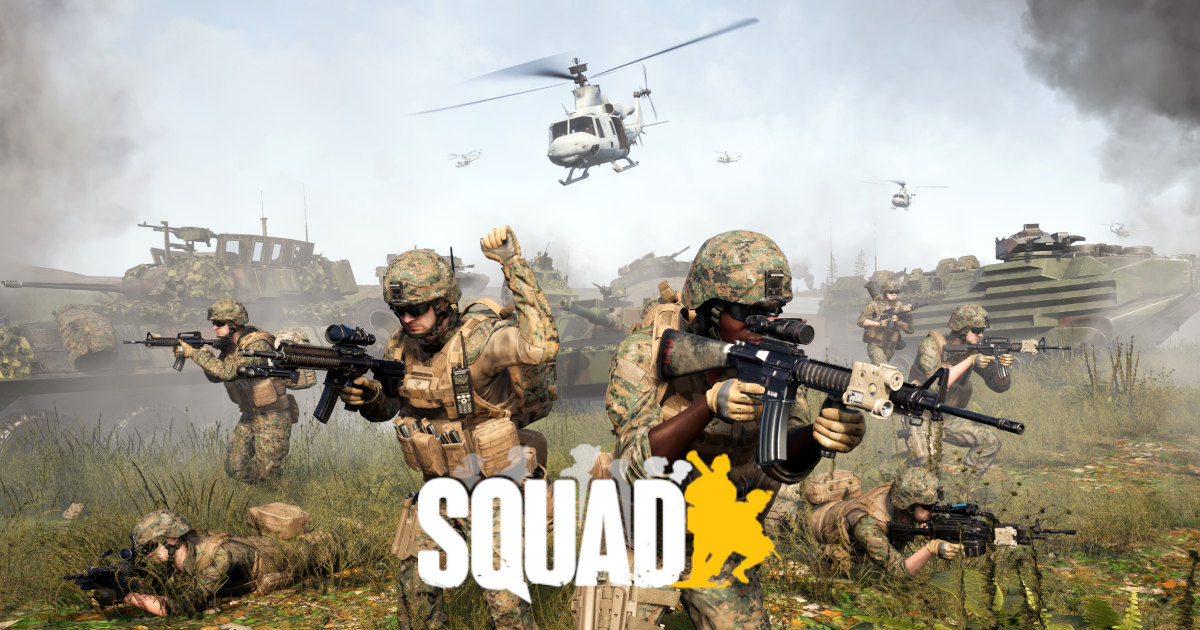
Squad optimization settings

Squad

Best optimized settings for Squad — 6 expert presets for maximum FPS and visual quality. Achieve 55-260 FPS.

6 presets available ← Back to all games
🔒

Login to See Recommended Settings

Sign in and add your PC specs to see which preset is recommended for your hardware and check if your PC can run Squad.

Login Now

⚙️ Optimization Presets

💎 Ultra Preset

Squad — Ultra quality settings

📐 1920x1080 🎯 55-80 FPS

Graphics Quality

Graphics Preset Epic
Texture Quality Epic
Shadow Quality Epic
Effects Quality Epic
Post Processing Epic
View Distance Epic
Foliage Quality Epic
Mesh Quality Epic
Ambient Occlusion High
Volumetric Fog High
Screen Space Reflections High
Terrain Detail High
Vehicle Detail High
Anti Aliasing TAA
Anisotropic Filtering 16x
Motion Blur On
Depth of Field High

Display Settings

Display Mode Fullscreen
Resolution 1920x1080
VSync On
Frame Rate Limit 120

Advanced Settings

DX12 Enabled
Upscaling FSR 2
FSR Mode Quality
Dynamic Resolution Off

🎨 High Preset

Squad — High quality settings

📐 1920x1080 🎯 75-110 FPS

Graphics Quality

Graphics Preset High
Texture Quality High
Shadow Quality High
Effects Quality High
Post Processing High
View Distance High
Foliage Quality High
Mesh Quality High
Ambient Occlusion Medium
Volumetric Fog Medium
Screen Space Reflections Medium
Terrain Detail High
Vehicle Detail High
Anti Aliasing TAA
Anisotropic Filtering 8x
Motion Blur Off
Depth of Field Medium

Display Settings

Display Mode Fullscreen
Resolution 1920x1080
VSync Off
Frame Rate Limit 144

Advanced Settings

DX12 Enabled
Upscaling FSR 2
FSR Mode Balanced
Dynamic Resolution Off

⚖️ Medium Preset

Squad — Medium quality settings

📐 1920x1080 🎯 100-150 FPS

Graphics Quality

Graphics Preset Medium
Texture Quality Medium
Shadow Quality Medium
Effects Quality Medium
Post Processing Medium
View Distance Medium
Foliage Quality Medium
Mesh Quality Medium
Ambient Occlusion Low
Volumetric Fog Low
Screen Space Reflections Low
Terrain Detail Medium
Vehicle Detail Medium
Anti Aliasing FXAA
Anisotropic Filtering 4x
Motion Blur Off
Depth of Field Low

Display Settings

Display Mode Fullscreen
Resolution 1920x1080
VSync Off
Frame Rate Limit 165

Advanced Settings

DX12 Enabled
Upscaling FSR 2
FSR Mode Performance
Dynamic Resolution Off

🏎️ Low Preset

Squad — Low quality settings

📐 1920x1080 🎯 130-210 FPS

Graphics Quality

Graphics Preset Low
Texture Quality Low
Shadow Quality Low
Effects Quality Low
Post Processing Low
View Distance Low
Foliage Quality Low
Mesh Quality Low
Ambient Occlusion Off
Volumetric Fog Off
Screen Space Reflections Off
Terrain Detail Low
Vehicle Detail Low
Anti Aliasing Off
Anisotropic Filtering 2x
Motion Blur Off
Depth of Field Off

Display Settings

Display Mode Fullscreen
Resolution 1920x1080
VSync Off
Frame Rate Limit 200

Advanced Settings

DX12 Disabled
Upscaling FSR 2
FSR Mode Ultra Performance
Dynamic Resolution On

🎮 Competitive Preset

Squad — Competitive quality settings

📐 1920x1080 🎯 160-260 FPS

Graphics Quality

Graphics Preset Custom Low
Texture Quality Medium
Shadow Quality Off
Effects Quality Low
Post Processing Low
View Distance Medium
Foliage Quality Low
Mesh Quality Medium
Ambient Occlusion Off
Volumetric Fog Off
Screen Space Reflections Off
Terrain Detail Medium
Vehicle Detail Medium
Anti Aliasing Off
Anisotropic Filtering 4x
Motion Blur Off
Depth of Field Off

Display Settings

Display Mode Fullscreen
Resolution 1920x1080
VSync Off
Frame Rate Limit Unlimited

Advanced Settings

DX12 Disabled
Upscaling FSR 2
FSR Mode Ultra Performance
Dynamic Resolution On

📹 Streaming Preset

Squad — Streaming quality settings

📐 1920x1080 🎯 85-120 FPS

Graphics Quality

Graphics Preset High
Texture Quality High
Shadow Quality Medium
Effects Quality High
Post Processing Medium
View Distance High
Foliage Quality High
Mesh Quality High
Ambient Occlusion Medium
Volumetric Fog Medium
Screen Space Reflections Medium
Terrain Detail High
Vehicle Detail High
Anti Aliasing TAA
Anisotropic Filtering 8x
Motion Blur Off
Depth of Field Medium

Display Settings

Display Mode Fullscreen
Resolution 1920x1080
VSync Off
Frame Rate Limit 120

Advanced Settings

DX12 Enabled
Upscaling FSR 2
FSR Mode Quality
Dynamic Resolution Off

About Squad Optimization

Looking for the best Squad settings to maximize your FPS and gaming experience? GameOptix provides 6 professionally tested presets for Squad, covering everything from competitive esports configurations to cinematic ultra-quality setups. Our tested presets deliver between 55 and 260 FPS depending on your hardware and chosen quality level.

Each preset is optimized for different hardware tiers and use cases. Whether you're playing on a budget laptop or a high-end RTX gaming PC, our Squad settings guide helps you find the perfect balance between visual quality and performance. All settings are regularly updated to reflect the latest game patches and driver optimizations.

Pro tip: Start with the Balanced preset and adjust individual settings based on your specific hardware. For competitive play, try our Max FPS or Competitive presets to minimize input lag and maximize frame rate. Streamers should check out the Streaming preset optimized for encoder-friendly performance.

❓ Frequently Asked Questions

For Squad Ultra preset, use resolution 1920x1080. This gives you 55-80 FPS. The preset includes 3 optimized settings covering all graphics options.
For Squad High preset, use resolution 1920x1080. This gives you 75-110 FPS. The preset includes 3 optimized settings covering all graphics options.
For Squad Medium preset, use resolution 1920x1080. This gives you 100-150 FPS. The preset includes 3 optimized settings covering all graphics options.
For Squad Low preset, use resolution 1920x1080. This gives you 130-210 FPS. The preset includes 3 optimized settings covering all graphics options.
For Squad Competitive preset, use resolution 1920x1080. This gives you 160-260 FPS. The preset includes 3 optimized settings covering all graphics options.
For Squad Streaming preset, use resolution 1920x1080. This gives you 85-120 FPS. The preset includes 3 optimized settings covering all graphics options.
To get the maximum FPS in Squad, use GameOptix's Max FPS or Low preset. Lower resolution to 1920x1080, disable anti-aliasing and shadows, set textures to low, and turn off post-processing effects. Check our detailed settings above for the exact configuration.
For competitive Squad, prioritize frame rate and visibility. Use our Competitive preset which minimizes visual clutter, maximizes FPS, and reduces input lag. Key settings: disable motion blur, lower shadow quality, and set render distance appropriately.

Explore More Games

📖 Complete Squad Graphics Settings Guide

Detailed breakdown of all presets with hardware recommendations and FPS tips →

Want Settings for More Games?

Browse our complete library of optimized settings for 100+ popular games.

🎮 Explore All Games